Nodaar
User Guide
Supplier & Reseller Platform
Version 1.0Table of Contents
- 1. Introduction
- 2. Splash Screen
- 3. Login Screen
- 4. Get Started
- 5. Supplier Registration
- 6. Supplier Dashboard
- 7. Add Product
- 8. My Products
- 9. Supplier Store
- 10. Orders
- 11. Earnings
- 12. Reseller Registration
- 13. Reseller Dashboard
- 14. Marketplace
- 15. Reseller Store
- 16. Public Store
- 17. Transaction & Pricing Model
- 18. Complete Flow
Welcome to Nodaar
Nodaar is a B2B marketplace that connects Suppliers with Resellers, enabling businesses to sell wholesale products while empowering entrepreneurs to build their own online stores.
For Suppliers
List wholesale products, manage bulk inventory, and reach verified resellers.
For Resellers
Source quality products, build your online store, and earn profits.
For Customers
Discover products through shared store links and shop seamlessly.
Splash Screen

Purpose
The splash screen provides a smooth entry into the Nodaar ecosystem, displaying the brand logo while securely checking your login status in the background before directing you to your personalized dashboard.
Functions
- Displays Nodaar logo
- Loads the application
- Checks login session
- Redirects to Login or Dashboard
How it Works
- Open the Nodaar App on your device.
- The system automatically checks if you have an active session.
- If you are already logged in, you will be redirected straight to your Dashboard.
- If you are a new user or your session expired, you will be prompted to log in or sign up.
Login Screen
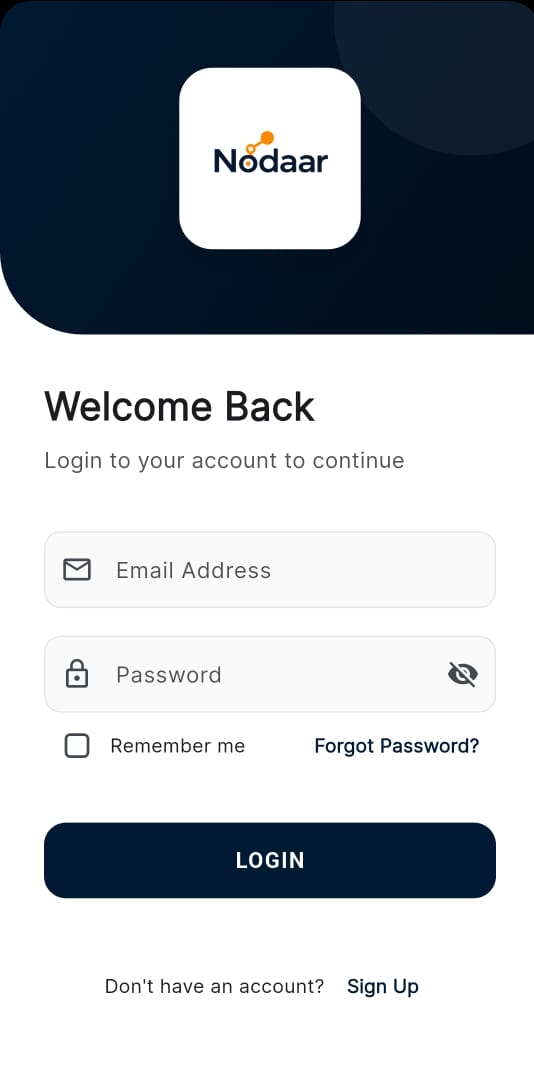
Purpose
The login screen is the secure gateway to your Nodaar workspace. It ensures that only authorized suppliers and resellers can access their business data, offering convenient options like 'Remember Me' and password recovery.
Features
- Email Address field
- Password field with show/hide toggle
- Remember Me option
- Forgot Password link
- Login button
- Sign Up link for new users
How to Use
- Enter the email address associated with your Nodaar account.
- Enter your secure password. You can use the show/hide toggle to ensure you typed it correctly.
- Check "Remember Me" to stay logged in for future sessions.
- Tap "Login" to access your workspace. If you forgot your password, tap the "Forgot Password" link to reset it.
Get Started
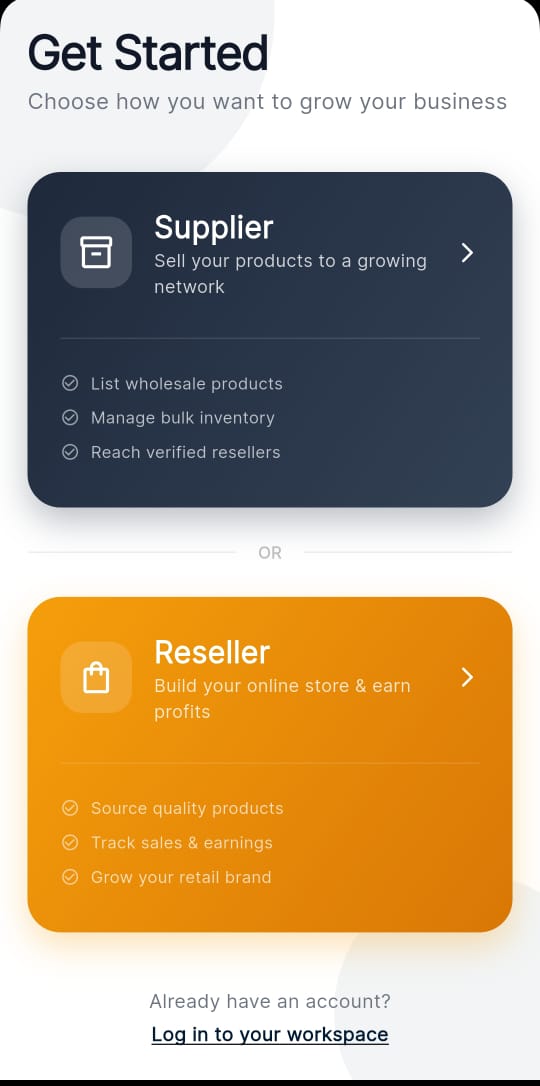
Purpose
This crucial onboarding step allows you to define your journey on Nodaar. Whether you are a Supplier looking to list wholesale inventory or a Reseller aiming to build a retail brand, your choice here tailors the entire app experience to your needs.
📦 Supplier
- List wholesale products
- Manage bulk inventory
- Reach verified resellers
🛍 Reseller
- Source quality products
- Track sales & earnings
- Grow your retail brand
How to Choose
- Upon successful initial registration, you will be presented with the account type selection.
- Read the brief descriptions of the Supplier and Reseller roles.
- If you manufacture or wholesale products, select the "Supplier" option.
- If you want to sell products to end-customers without holding inventory, select the "Reseller" option.
Supplier Registration
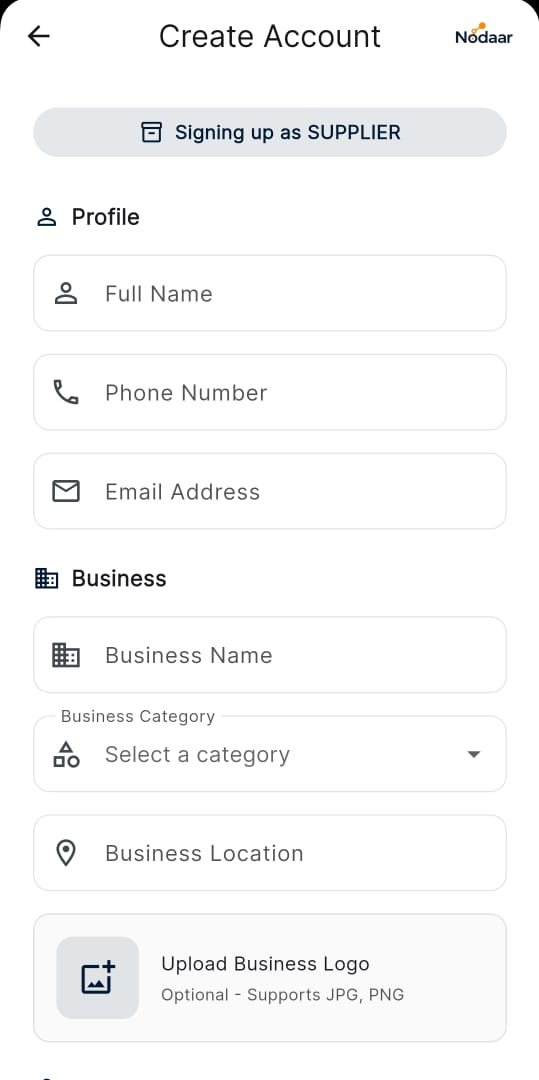
Purpose
This feature collects essential details about you and your business. It allows Nodaar to verify your supplier identity and sets up your initial business profile, ensuring trust and transparency within the marketplace.
Profile
- Full Name
- Phone Number
- Email Address
Business
- Business Name
- Business Category
- Business Location
- Business Logo (optional)
Security
- Password
- Confirm Password
- Accept Terms & Conditions
Step-by-Step Guide
- Fill out your personal profile information including Full Name, Phone Number, and Email.
- Provide your business details: Business Name, Category, and Location.
- Optionally upload your Business Logo to make your brand recognizable.
- Set a strong password and confirm it.
- Read and accept the Terms & Conditions, then tap "Register".
Supplier Dashboard
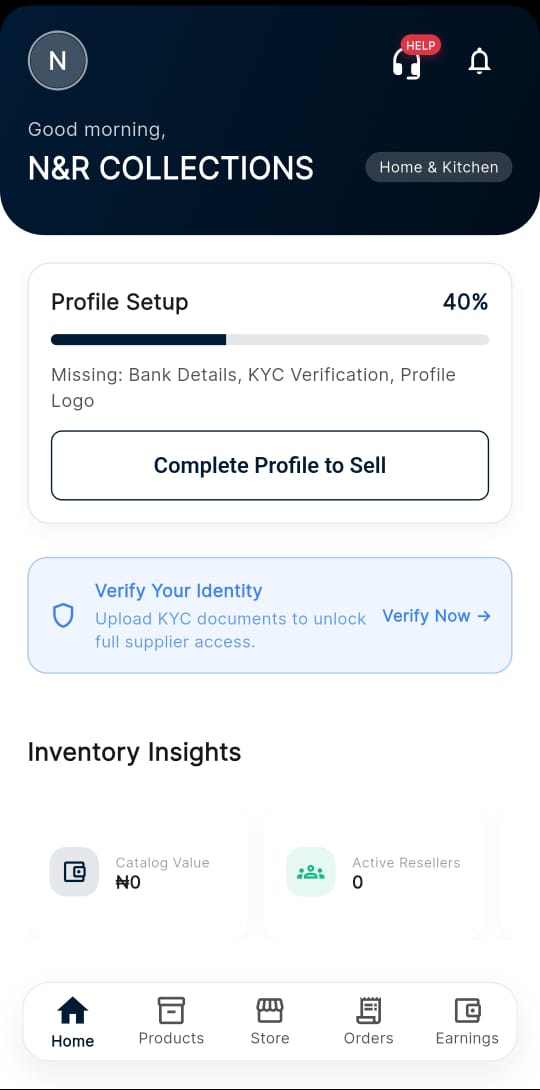
Purpose
Your central command center as a supplier. This feature provides a bird's-eye view of your business performance, tracking your profile completion, KYC status, and giving you quick insights into your inventory and active reseller network.
Overview
- Business profile summary
- Profile setup progress
- Identity verification (KYC)
- Inventory insights
- Active resellers count
How to Navigate
- Review your "Profile Setup Progress" indicator to see what steps remain to fully activate your account.
- Tap on the "Identity Verification (KYC)" banner to submit your documents if you haven't already.
- Check the "Inventory Insights" summary to monitor total products listed and low-stock warnings.
- Use the navigation menu to jump to specific tasks like managing orders or adding products.
Add Product
Purpose
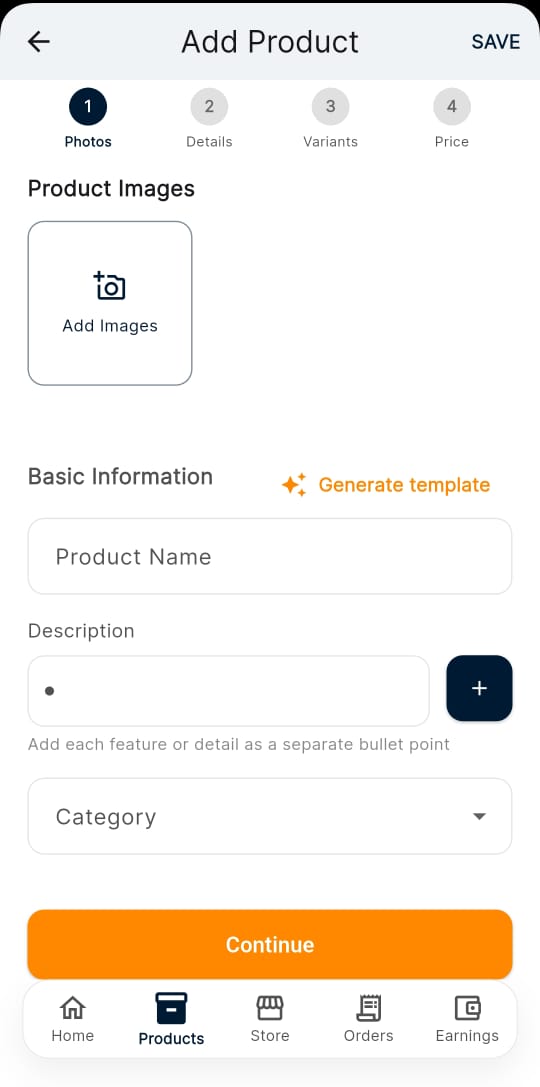
The core engine for growing your wholesale business. This feature guides you through a streamlined 4-step process to create high-quality product listings with images, AI-assisted descriptions, variant options, and wholesale pricing.
4-Step Process
Photos
Details
Variants
Price
Features
- Upload product images
- Add name, description & category
- AI Generate Template
- Set variants and pricing
How to Add a Product
- Photos: Tap to upload or take high-quality images of your product from multiple angles.
- Details: Enter the product title, select the category, and use the "AI Generate Template" to quickly write a professional description.
- Variants: Add options like size, color, or material if your product comes in different types.
- Price: Set the wholesale price and minimum order quantity. Review all details and tap "Publish".
My Products
Purpose
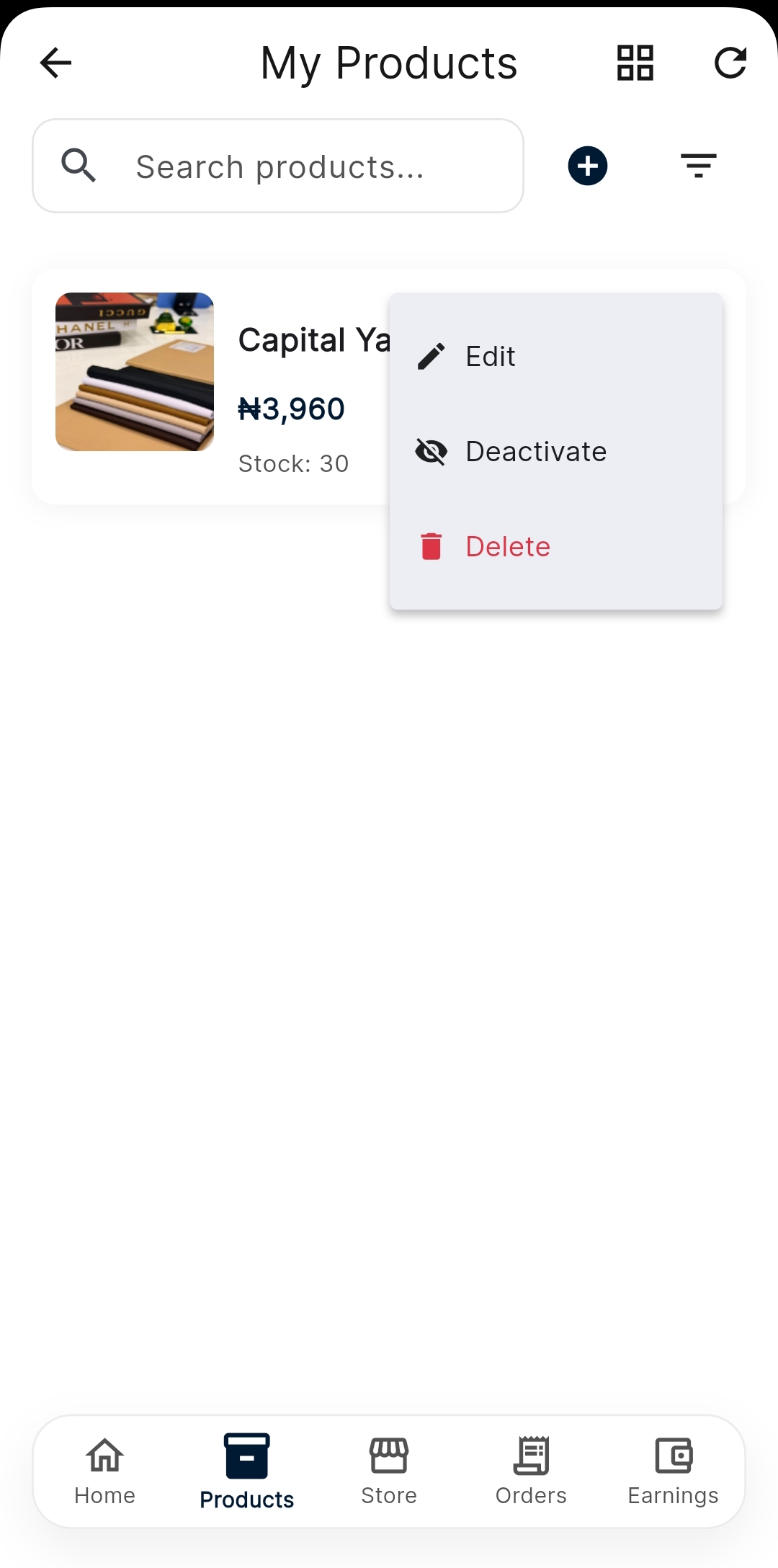
A comprehensive inventory management tool. This feature allows you to efficiently organize, search, and update your product catalog, giving you full control over what is visible and available to resellers.
Manage Your Catalog
- Search products
- Filter and sort
- Edit product details
- Deactivate products
- Delete products
- Switch grid/list views
How to Manage Inventory
- Use the top search bar to quickly find a specific product by name or SKU.
- Tap the filter icon to sort products by price, category, or stock status.
- To edit a product, tap on its card to open the details view and modify any information.
- Use the quick toggle switch on the product card to temporarily deactivate it, or use the delete button to remove it entirely.
Supplier Store
Purpose
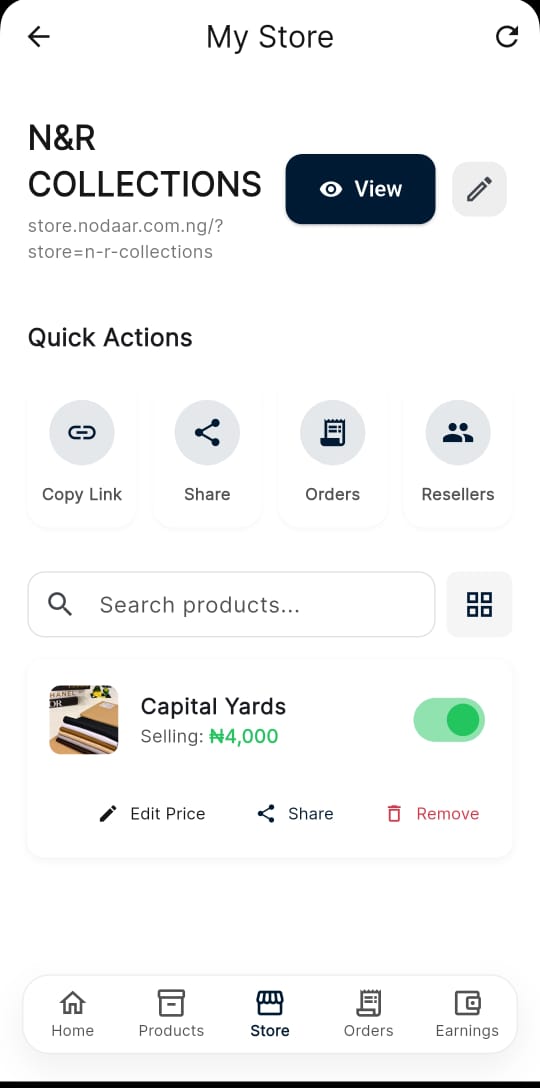
Your public-facing wholesale storefront. This feature empowers you to share your entire catalog via a simple link, manage store settings, and monitor how your products are presented to potential resellers.
Quick Actions
Copy Link
Share
Orders
Resellers
Manage
- View public storefront
- Edit store settings
- Enable/disable products
- Edit selling price
How to Manage Your Storefront
- Tap the "Copy Link" button to instantly copy your unique store URL to your clipboard.
- Use the "Share" button to send your store link directly to potential resellers via WhatsApp, email, or social media.
- Review your public storefront layout to see exactly what resellers see when they visit your link.
- Adjust your global store settings to update your banner, policies, and contact information.
Orders
Purpose
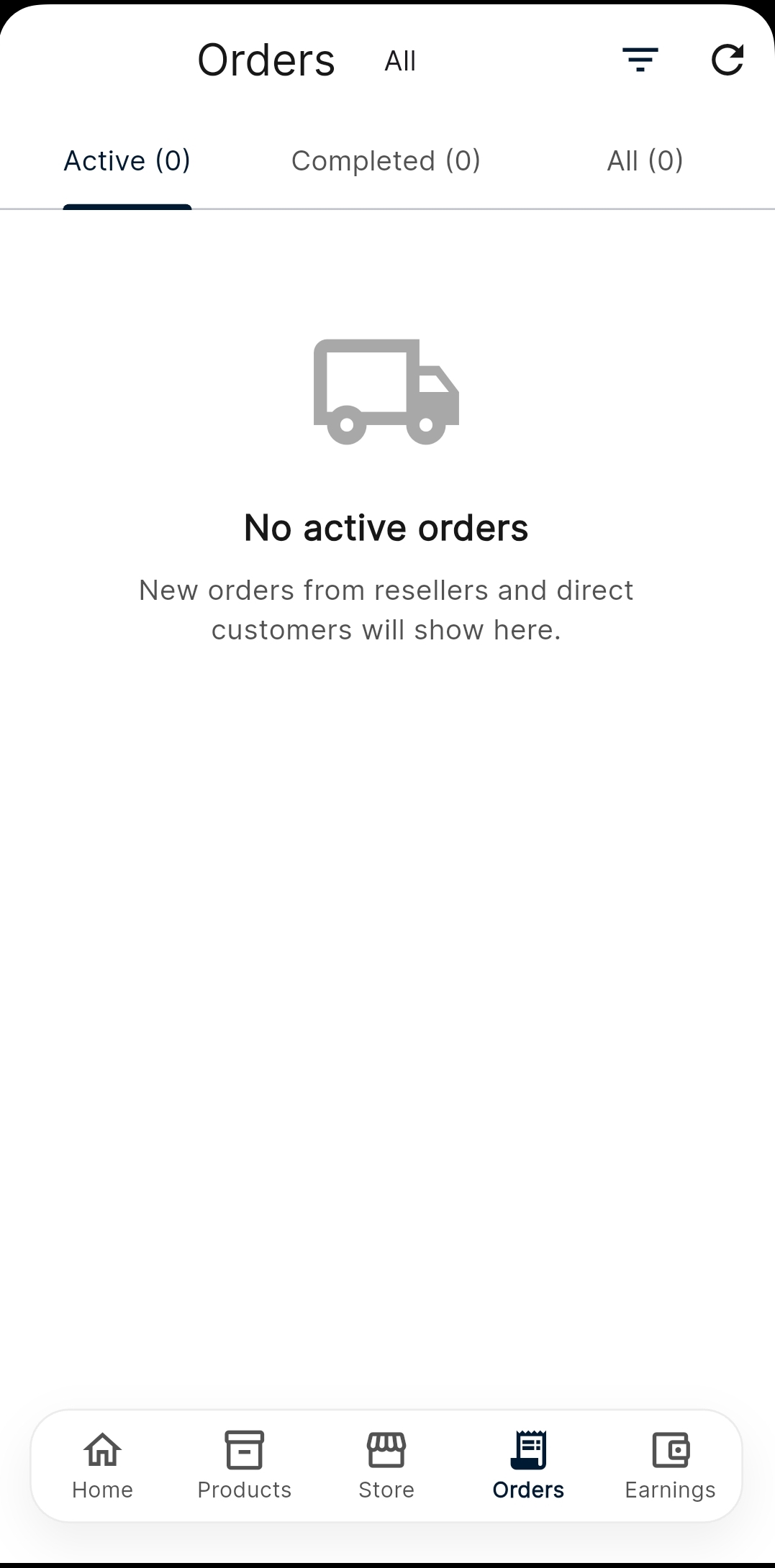
A robust order tracking system that keeps you organized. This feature categorizes your sales into active and completed tabs, allowing you to seamlessly move orders through processing stages and ensure timely fulfillment.
Tabs
- Active Orders
- Completed Orders
- All Orders
Order Flow
Received
How to Fulfill Orders
- Navigate to the "Active Orders" tab to view all new and pending requests from resellers.
- Tap on an individual order to view customer details, shipping address, and the specific items purchased.
- Once you prepare the package, update the order status to "Processing" and then to "Shipped".
- When the order is successfully delivered, mark it as "Completed" to finalize the transaction and release funds.
Earnings
Purpose
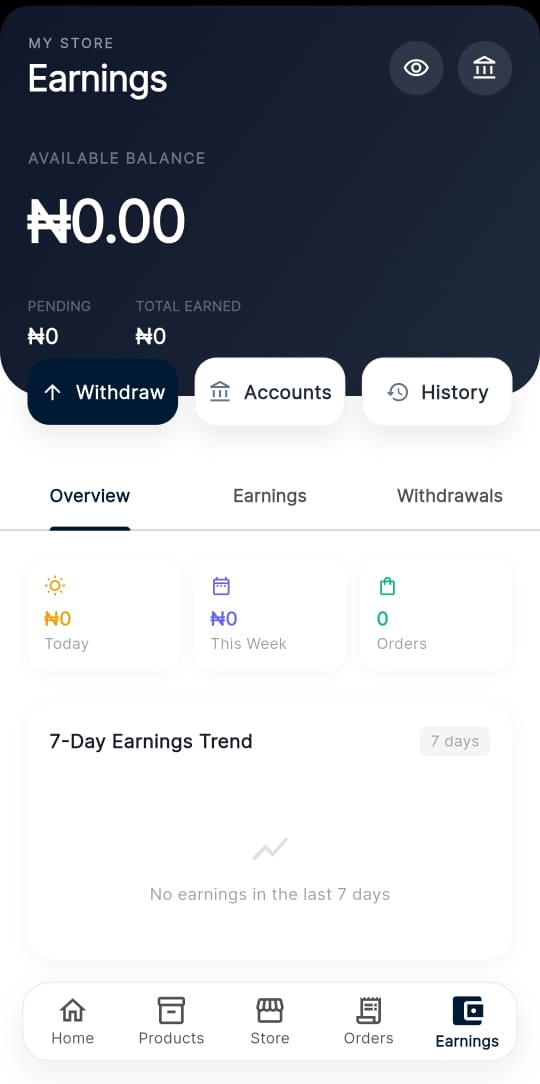
Your secure financial hub. This feature tracks your available balance and pending payouts, providing detailed transaction history and intuitive charts so you can monitor your business growth and withdraw funds.
Financial Dashboard
- Available Balance
- Pending Earnings
- Total Earned
- Withdraw funds
- Manage bank accounts
- Transaction history
- 7-Day Earnings Trend
How to Withdraw Funds
- Check your "Available Balance" to see the funds that are cleared and ready for withdrawal.
- Ensure your Identity Verification (KYC) is fully approved.
- Navigate to "Manage Bank Accounts" to securely link your preferred receiving account.
- Tap "Withdraw Funds", enter the amount, and confirm the transaction. Track the payout status in your Transaction History.
Reseller Registration
Purpose
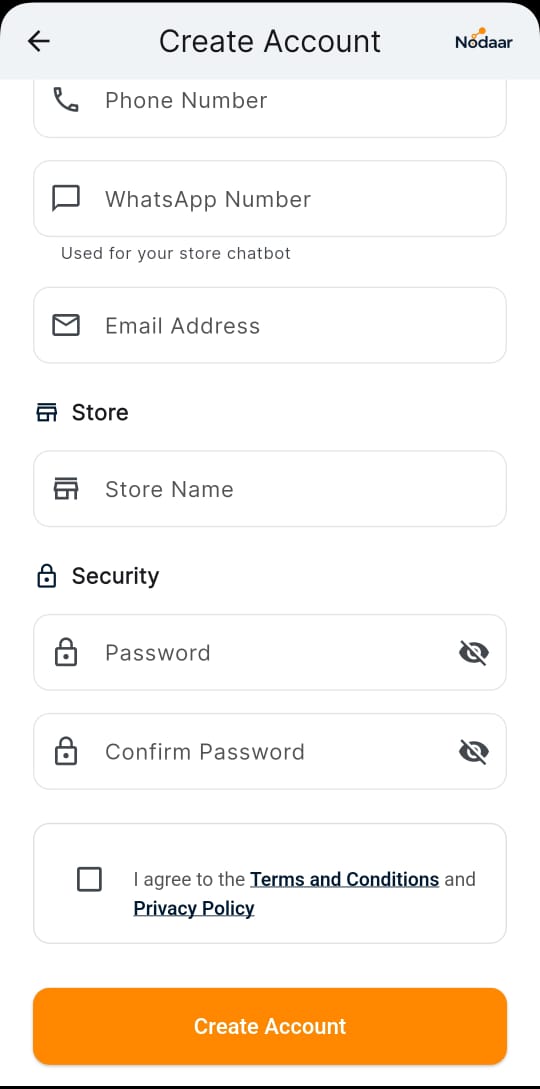
A streamlined sign-up process tailored for entrepreneurs. This feature captures your contact info and desired store name, rapidly setting up your personalized retail space on the Nodaar platform.
Profile
- Full Name
- Phone Number
- WhatsApp Number (chatbot)
- Email Address
Store
- Store Name
Security
- Password
- Confirm Password
- Accept Terms
Step-by-Step Guide
- Enter your Full Name, Phone Number, and Email Address.
- Provide your WhatsApp number, which will be connected to our smart chatbot for instant notifications.
- Choose a unique "Store Name" for your customized retail shop.
- Create a secure password, accept the Nodaar Terms of Service, and tap "Create Store".
Reseller Dashboard
Purpose
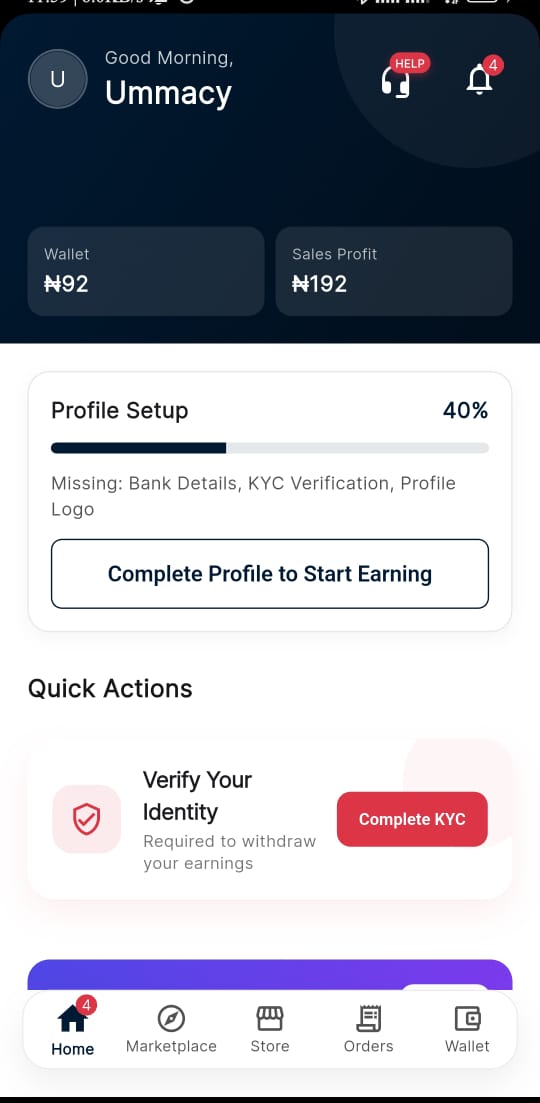
A snapshot of your retail success. This feature highlights your wallet balance and sales profits, while guiding you through the necessary KYC steps to ensure you can smoothly withdraw your earnings.
Overview
- Wallet balance
- Sales profit
- Profile setup progress
- KYC verification
How to Navigate
- Check your "Wallet Balance" to see your total earnings from successful sales.
- Review your "Sales Profit" graph to track your revenue trends over time.
- If your KYC is incomplete, tap the verification banner to submit your ID and unlock withdrawals.
- Use the quick-action buttons to jump directly into the Marketplace or view your Storefront.
Marketplace
Purpose
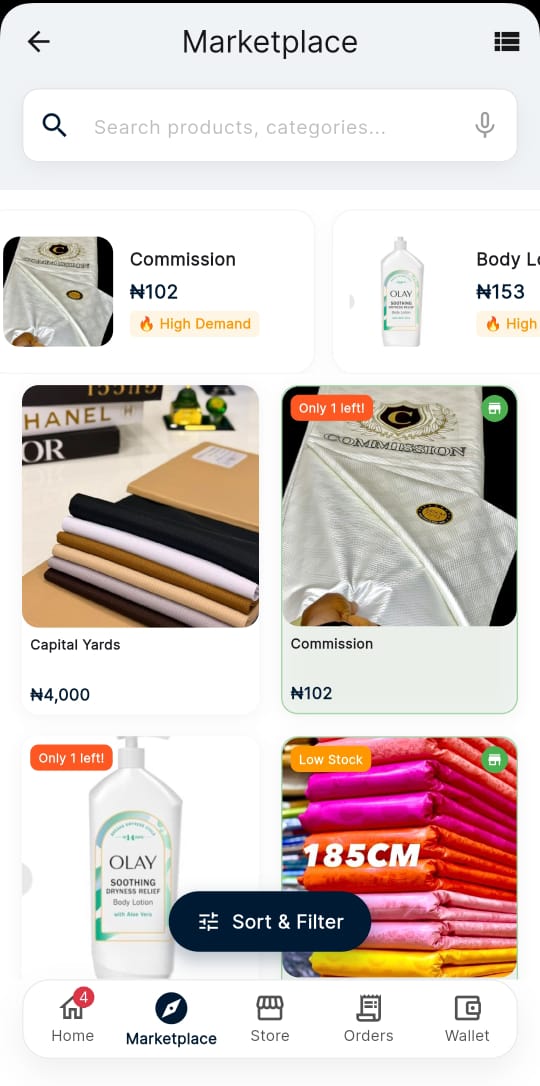
The ultimate sourcing destination for resellers. This feature allows you to explore thousands of wholesale products, utilizing smart filters, demand badges, and low-stock alerts to curate the perfect inventory for your store.
Browse Products
- Search & voice search
- Sort & filter
- High Demand badges
- Low Stock alerts
- Add to store
How to Source Products
- Scroll through the trending categories or use the search bar to find specific items.
- Look for products with "High Demand" badges to identify proven bestsellers.
- Tap on a product to view its wholesale price, suggested retail price, and supplier ratings.
- Tap "Add to Store" to instantly copy the product listing into your own Reseller Store.
Reseller Store
Purpose
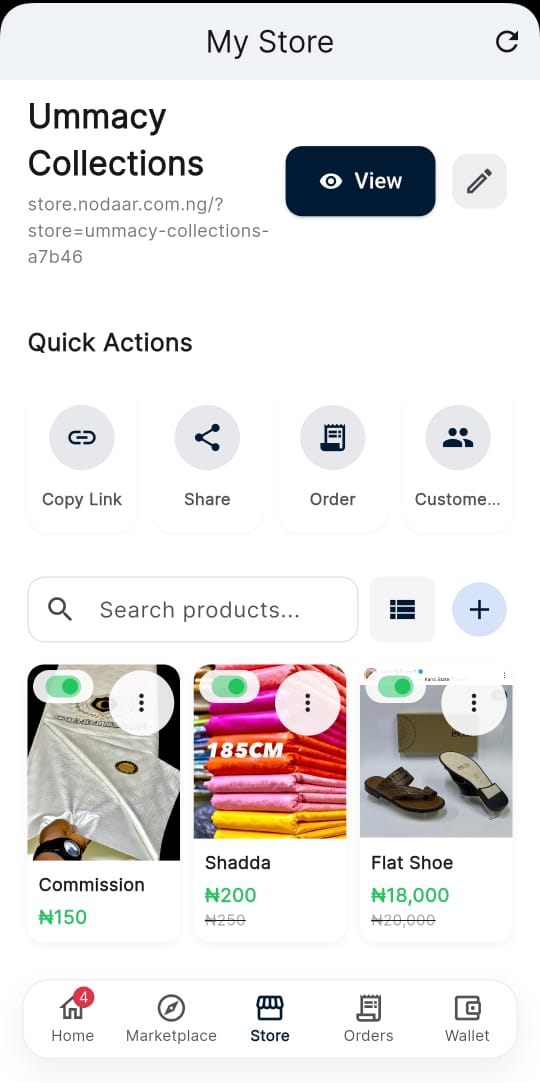
Your very own customizable retail shop. This feature lets you adjust selling prices for your customers, manage product visibility, and easily share your store link to start generating sales immediately.
Manage Your Store
- Copy & share store link
- View customers & orders
- Edit selling prices
- Show/hide products
How to Manage Your Retail Shop
- View the list of products you have sourced from the Marketplace.
- Tap on any product to edit its "Selling Price" and adjust your profit margin.
- Use the visibility toggle to temporarily hide products that you don't want to show to your customers.
- Tap "Share Store Link" to send your personalized shop URL to your customers on social media or messaging apps.
Public Store
Purpose
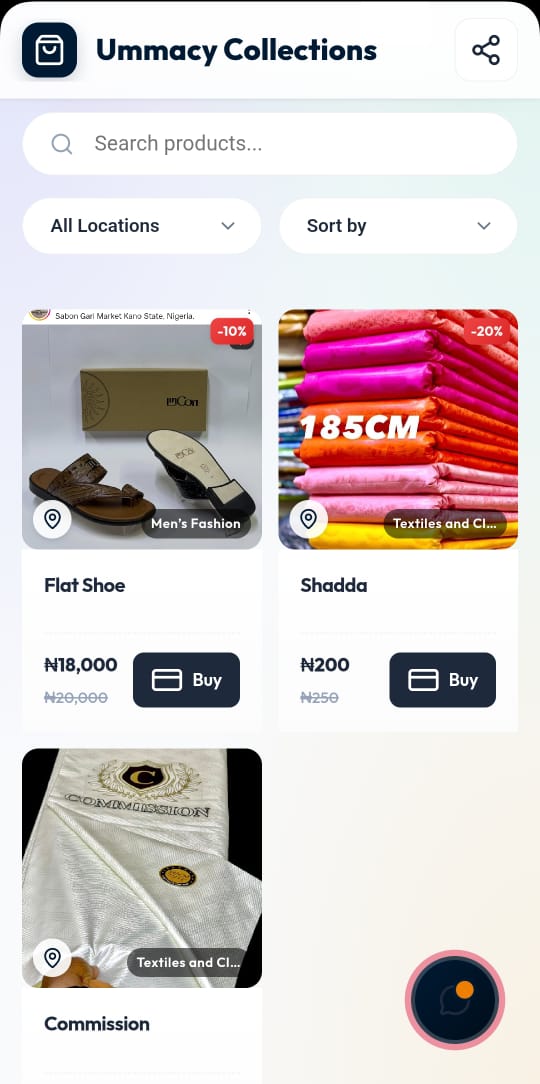
The seamless shopping experience for your end-customers. This feature provides a smooth, intuitive interface where buyers can browse your curated products, apply discounts, and communicate directly with you before making a purchase.
Customer Experience
- Browse products
- Search & filter
- View discounts
- Buy products
- Chat with seller
How Customers Use Your Store
- Customers click your shared link and arrive at your fully-branded mobile storefront.
- They can easily browse categories, view product details, and add items to their shopping cart.
- During checkout, they enter their delivery details and complete payment seamlessly.
- Customers can use the built-in chat feature to message you directly if they have questions before buying.
Transaction & Pricing Model
Purpose
This section breaks down how pricing works across the platform and how funds flow between the Customer, Reseller, and Supplier during a transaction.
Setting the Price
- Wholesale Price: The Supplier sets the base price at which they are willing to sell the item in bulk or via dropshipping.
- Suggested Retail Price (SRP): When a Supplier sets the wholesale price, the system intelligently calculates a recommended selling price based on industry markup standards. This gives Resellers a profitable baseline.
- Final Selling Price: The Reseller chooses the final price displayed to the end-customer on their Public Store. They can use the SRP or adjust it based on their own profit goals.
💰 Example Scenario
- Supplier Wholesale Price: ₦2,000
- Suggested Retail Price: ₦3,000
- Reseller Selling Price: ₦3,500
💸 Transaction Breakdown
- Customer Pays: ₦3,500
- Korapay Charges: ~₦153 (e.g., 1.5% + ₦100)
- Supplier Earns: ₦2,000
- Reseller Profit: ₦1,347
Complete App Flow
Supplier
Reseller
Understanding the Ecosystem
- Start by reviewing the complete path from Launch to Getting Paid.
- Notice how the Supplier flow (left branch) directly feeds into the Reseller flow (right branch) through the Marketplace.
- Use this map to understand where you currently are in the business cycle.
- For any bottlenecks, refer back to the specific chapters in this guide to optimize your process.